The big iOS 26 update last September has brought huge changes to Apple‘s products, especially the iPhone, both hardware, through the liquid glass design, and software, through its original built-in apps like Music, Message, and Wallet.
The new visual intelligence tools in iOS 26 leverage machine learning on the device to recognize objects, text, and context right from pictures, screenshots, and the camera view. It allows the system to offer smarter actions, such as pulling dates into Calendar, identifying items for shopping, extracting text, or providing quick information about landmarks, documents, or products.
However, one of the most useful updates that many users don’t realize is in the Apple Calendar app, which now has the ability to create events via screenshots! Here is the details:
Also Read Apple Store Down In the US 2025? Here Is The Cause!
A ‘Screenshot‘ Like Feature
Apple has enhanced the screenshot feature with the power of new “visual intelligence” on all AI-enabled iPhones.
You may have noticed that iOS 26 changes the default behavior for screenshots.
Screenshots now display a full-screen UI by default, instead of a floating thumbnail in the bottom-left corner. You can always revert to the old view if you prefer.
One of those new screenshot features is Apple’s Calendar app.
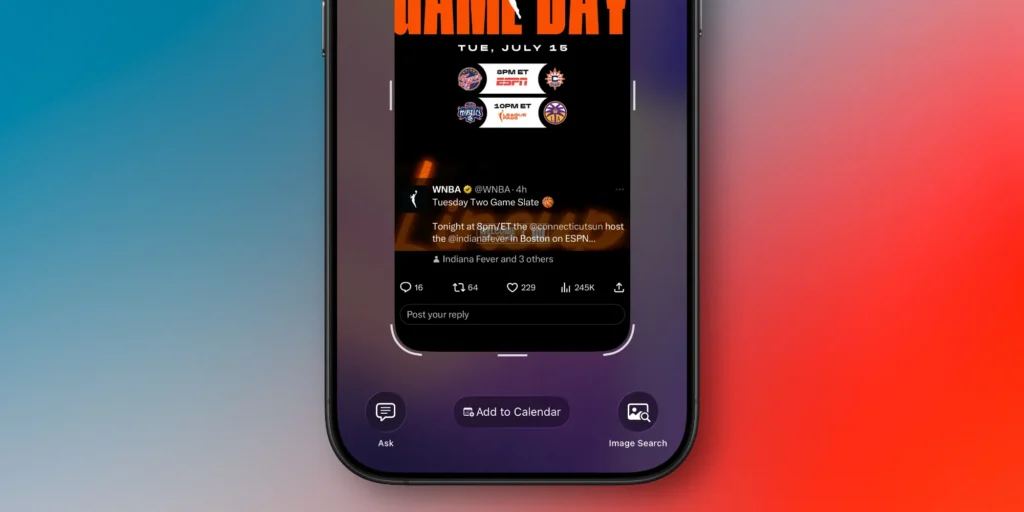
Take a screenshot of anything containing a calendar event, and iOS 26 provides a handy new button at the bottom of the screen: “Add to Calendar.”
Keep in mind that this button only appears within the default full-screen UI. So, if you switch back to thumbnail view, you’ll need to tap the thumbnail first to see it.
Also Read Apple Pay’s Promotional Strategy $3M for AIDS in 10 Days
A New Way Of “Add to Calendar” In iOS 26
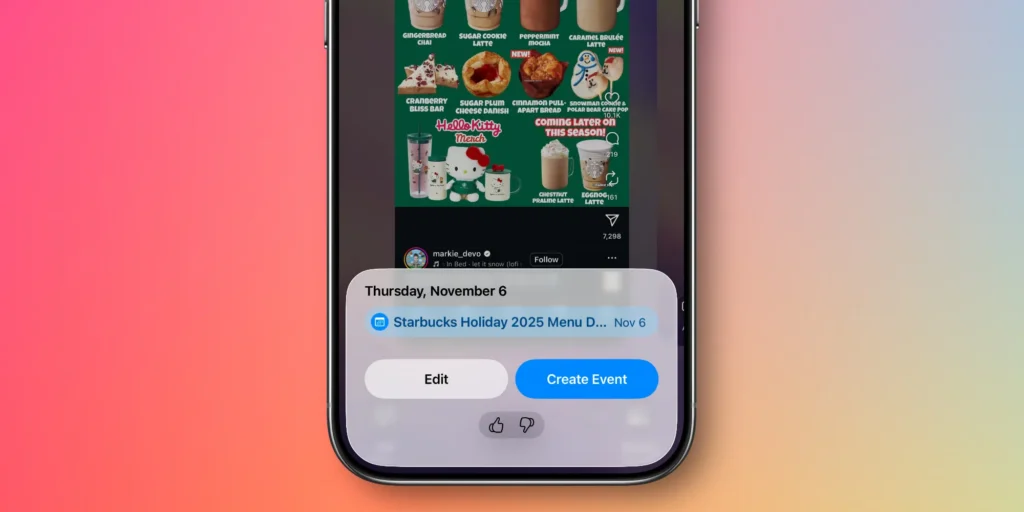
Now you must be wondering how to use this new feature? The feature, “Add to Calendar”, works just as the name indicates. Using Apple Intelligence, the event details presented in your screenshot will be transformed into actionable calendar events.
Once you click “Add to Calendar,” you will be able to see a preview of your calendar. You can click “Create Event,” and everything is done if it appears to be correct.
You can also use the “Edit” button that brings up the app’s standard event creation dashboard, if you need to change the details. One of the most typical applications of “Edit” is to edit the calendar you want to add.
It’s a great contrast to Apple’s built-in Calendar software; once you get used to adding calendar events this way.
You can also try adding your calendar account credentials to a third-party app by several steps.
- First, open your Settings
- Choose Apps
- Choose Calendar
- Finally, choose Calendar Accounts in iOS 26
However, this action could potentially cause some data syncing issues, depending on the chosen third-party service and app. But if that proves to be a non-issue, you may still take benefit of Apple Calendar’s snapshot capability even if most of your calendar settings are done in a separate app.
Although often overlooked, the latest iOS 26 update to the Calendar app has proven to be helpful for many users. One Reddit post expressed their satisfaction about the new feature, “What a polished operating system we got this year. I’m sure there was a beta period where Apple took all of our feedback on board too”.
That’s all the article about the new advantageous update on the Apple Calendar app for you who have already updated your iOS to iOS 26. Don’t forget to check other related and interesting articles only at Price in UK! See You〜