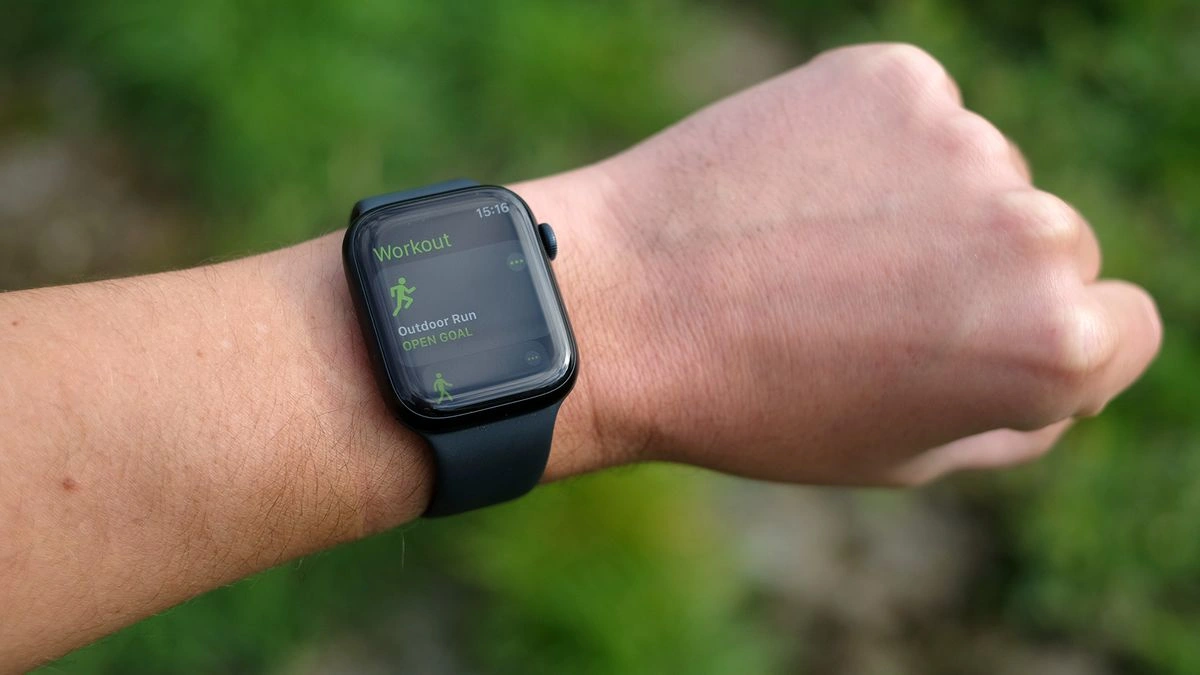
With the security enhancements that came with update 26.2, Apple Watch has brought a ton of innovations to its users.
However, there are still so many features hidden inside this smartwatch device, especially its health features.
Also Read What’s New Apple watchOS 26.2 – Enhanced Safety Alerts And More!
This article will cover 9 Watch’s hidden features so that you, as the user, can maximize its potential use. Let’s check them out!
Apple Watch Health Hidden Features
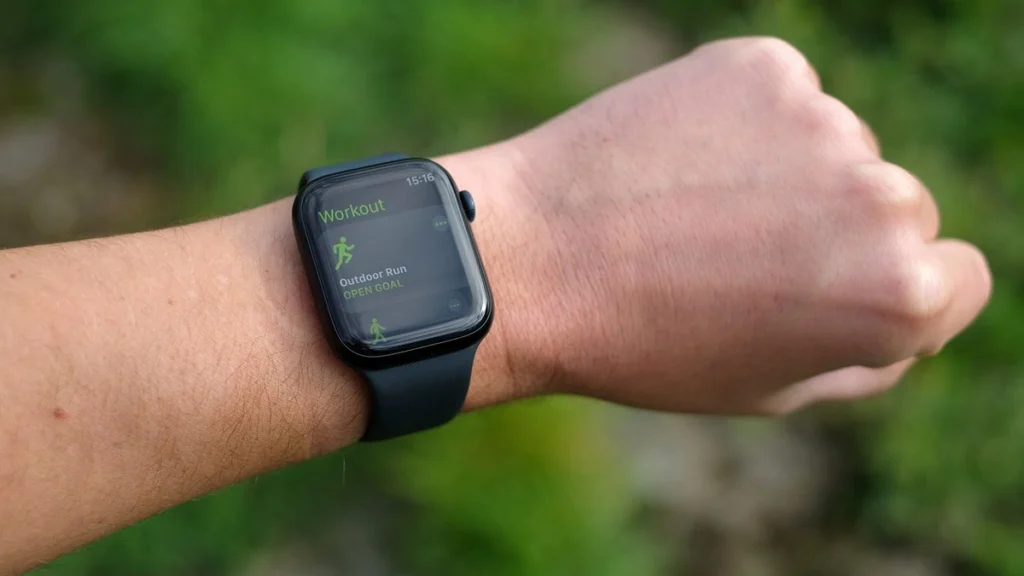
Based on the company’s doctor, Dr. Lauren Cheung, here is the list of 9 Apple Watch‘s hidden features that its users rarely know:
- Handwashing
Handwashing will detect if the users already reach the recommended 20-second of washing hand duration according to the US Centers for Disease Control and Prevention every time they begin to wash their hand.
How To Activate It:
- Open your Apple Watch
- Open setting
- Click on Handwashing
- Turn on the timer
- Sleep apnea notifications
Through this feature, users will be informed and alerted about the sleep apnea patterns that might have occurred during their sleep, especially for users with hypertension, type 2 diabetes and cardiac issues.
How To Activate It:
- Open the Health app on your iPhone, make sure you already set up your Sleep feature
- Click on Get Started below the Set Up Sleep
- Click Next and follow the steps on the screen
- Wear your Watch whenever you sleep for at least 10 nights in 30 days
You can also turn on sleep apnea notifications by:
- Open the Health app on your iPhone
- Click on Browse
- Tap on Respiratory, here it will also display your sleep apnea notifications and breating disturbances
- Choose Set Up below Sleep Apnea Notifications
- Click Next
- Follow the instructions on your screen
- State of mind
This feature allow users to map their daily mood and emotions, which can help in a better moods and emotions controlling.
How To Activate It:
- Open Mindfulness app on your Apple Watch
- Choose State of Mind
- Tap Get Started
You can see your patterns of feeling over time by following these steps:
- Open your Health app
- Click on Browse
- Choose Mental Wellbeing
- Click on State of Mind
- Tap Show in Charts to display users’ patterns related to sleep, exercise, time spent in daylight, and mindful minutes.
Also Read Apple’s 2025 App Store Awards Winners Announced – Innovative Apps Leading the Way
- Time in daylight
Time in Daylight features will help users to set their daylight time to lower the risk of getting myopia or nearsightedness.
As Cheung said, “The International Myopia Institute recommends children spend 80-120 minutes outside each day to help lower their risk of myopia, or nearsightedness,”
How To Activate It:
- Open your iPhone’s Settings
- Choose Privacy & Security
- Click on Location Services
- Turn on Location Services
- Tap on System Services
- Make sure you have already turned on your Motion Calibration & Distance
- Open your iPhone’s Health app
- Click on Browse
- Choose Other Data
- Click Time in Daylight
- Heart health notifications
Through this features, user will get the information and alert whenever their heart rate is high or low or has an irregular rhythm.
How To Activate It:
- Open Watch’s app on your phone
- Choose My Watch
- Click on Heart
- Tap High Heart Rate
- Choose Beats Per Minute
- Click on Low Heart Rate
- Choose BPM
To activate the irregular rhythm notifications follow these steps
- Open the Health app on your phone
- Choose Browse
- Click on Heart
- Choose Irregular Rhythm Notifications
- Click Enable
- Fall detection
This features works by sounding an alarm every time it detects a hard fall. It will show an alert, and users need to tap their wrist to confirm whether they are okay or call emergency services.
It will automatically call for help and shares user’s location with emergency contacts, even via satellite, if the user remains immobile for about a minute.
Keep in mind it can’t detect every fall and may misinterpret high-impact activities. Furthermore, the feature will also turns on automatically for users aged 55 and older.
How To Activate It:
- Open your phone’s Watch app
- Choose My Watch
- Click on Emergency SOS
- Turn on Fall Detection
Want more topics about Apple news? Check here Apple News Update!
- Ovulation estimates
Watch users, especially women, now don’t need to worries about their ovulation schedule because this features will help you to estimate it.
How To Activate It:
- Open Health app in your phone
- Choose Browse
- Click on Cycle Tracking
- Tap Get Started
- Follow the screen instructions
- Set up Sleep features
- Set up Track Sleep
- Enabled Sleep Focus for 4 hours per night for five nights at least
- Noise notifications
This features will help its users to measure the users’ surrounding sound levels. It can also notify the user if there is dangerously loud noises detected.
How To Activate It:
- Open your iPhone’s Watch app
- Choose My Watch
- Click on Noise
- Tap Noise Threshold
- Pick a decibel level
- The Vitals app
Vitals will provide its user with direct monitoring of the user’s daily health condition. By knowing how their health condition changes daily, it is hoped that this application can help users make decisions about their body.
How To Activate It:
- Wear your Watch for seven days at least to set up your range
- Make sure you wear it tight on your wrist for accurate readings
- Open Settings on your Watch
- Click on Vitals
- Turn on the notifications
You also need to make sure that you have already set up and enabled your Track Sleep and Sleep Focus on your Watch for sleep specifically. Here is the steps to do so:
- Open the Health app on your phone
- Click on Get Started under Set Up Sleep
- Tap Next
- Follow the instructions on screen
- You can also access it on your Apple Watch by opening the Apple Watch’s Sleep app and following the on-screen steps.
You can also watch more Watch’s Health features in the video below:
That’s all the articles about the 9 Apple Watch hidden health features you might not have known before, as well as some tutorials on how to activate them.
Scroll Price in UK for the newest update surrounding the same topic and other interesting articles!
So, which hidden features have you been using or known before?
How do you feel?